
Introduction
Did it happened to you as well that you wanted to make some website without design and you had to think of colors on your own. Setting plain colors like 'blue, red, green, etc.' is such a NO, NO. If you think of some color and find some you like, you still need to make combination of multiple colors. Thats why I made this quick application, also wanted to try Remix, so I can quickly get pallete, only by selecting primary (one) color.
So lets get through the process of making this application, its shouldnt take long as it is pretty straight forward.
Primary idea is that the app allows users to choose a primary color and generates a set of complementary color schemes like accent colors, analogous colors, triadic colors, and split-complementary colors. Users can easily copy the color hex codes to the clipboard with a simple click. Also we want to let user know that color is copied to clipboard so we will show simple toast message.
Let's break down the implementation in 4 simple steps.
Step 1: Setting Up the App
To start, we import necessary libraries:
- react-hot-toast for toast notifications.
- React hooks for managing state.
Installing Dependencies
First, you need to install the required packages:
npm install react-hot-toast
Importing Dependencies
Next, we import the required modules:
import React from "react"; import toast, { Toaster } from "react-hot-toast";
react-hot-toast will allow us to show quick toast notifications when the user copies a color.
Step 2: Generating Color Palettes
The main point of this app is the function generatePalette, which does all the magic and creates a range of colors from a primary color.
So we need following:
- Primary Color: The user can pick a primary color using the color picker.
- Shades of the Primary Color: We generate a series of accent colors by adjusting the lightness of the base color.
- Analogous Colors: These are colors next to the primary color on the color wheel.
- Triadic Colors: These colors are spaced evenly around the color wheel.
- Split-Complementary Colors: These colors are created by taking the complementary color and then splitting the angle to get two more colors.
Here’s the function that handles the color generation:
const generatePalette = (primaryColor) => { // Hex to HSL conversion logic // Generate accent, analogous, triadic, and split colors return colorResponse; };
We can also define helper functions such as hexToHsl and hslToHex to split code to make it more readeable and we want to convert between color formats.
Step 3: Creating the User Interface
The main UI consists of:
- Picker: This allows the user to select a primary color.
- Display Color Squares: Each color is displayed in a square with its hex code and a label.
As I said earlier, its pretty simple and straight-forward.
Color Picker
The color picker is implemented using a simple <input type="color" /> native element that allows users to pick a color in browser. When the color changes, the state updates as we use useState hook:
<input type="color" value={primaryColor} onChange={(e) => setPrimaryColor(e.target.value)} style={{ margin: "10px 0", padding: "5px" }} />
Displaying Colors
Each generated color is displayed in a square with the hex code and label below it, its more readable in my opinion. Here's how we display the color squares:
<div style={{ textAlign: "center", cursor: "pointer" }} onClick={() => copyToClipboard(palette[key])}> <div style={{ width: "100px", height: "100px", backgroundColor: palette[key], borderRadius: "5px", border: "1px solid #ddd", display: "flex", justifyContent: "center", alignItems: "center", color: "#fff", fontWeight: "bold", }} > {palette[key]} </div> <p>{key}</p> </div>
The color square is clickable, and when clicked, the corresponding color is copied to the clipboard.
Step 4: Showing Toast Notifications
To improve the user experience, we added toast notifications to inform the user when they successfully copy a color code to the clipboard. We dont want to missinform user so its better to show user whats happening, toast is pretty nice choice if you ask me.
The copyToClipboard function uses the react-hot-toast library to show a success message.
const copyToClipboard = (hex) => { navigator.clipboard.writeText(hex); toast.success(`Copied ${hex} to clipboard!`); };
When a user clicks on a color square, the hex code is copied to the clipboard, and a toast notification is triggered.
Example
Checkout live version on this link.
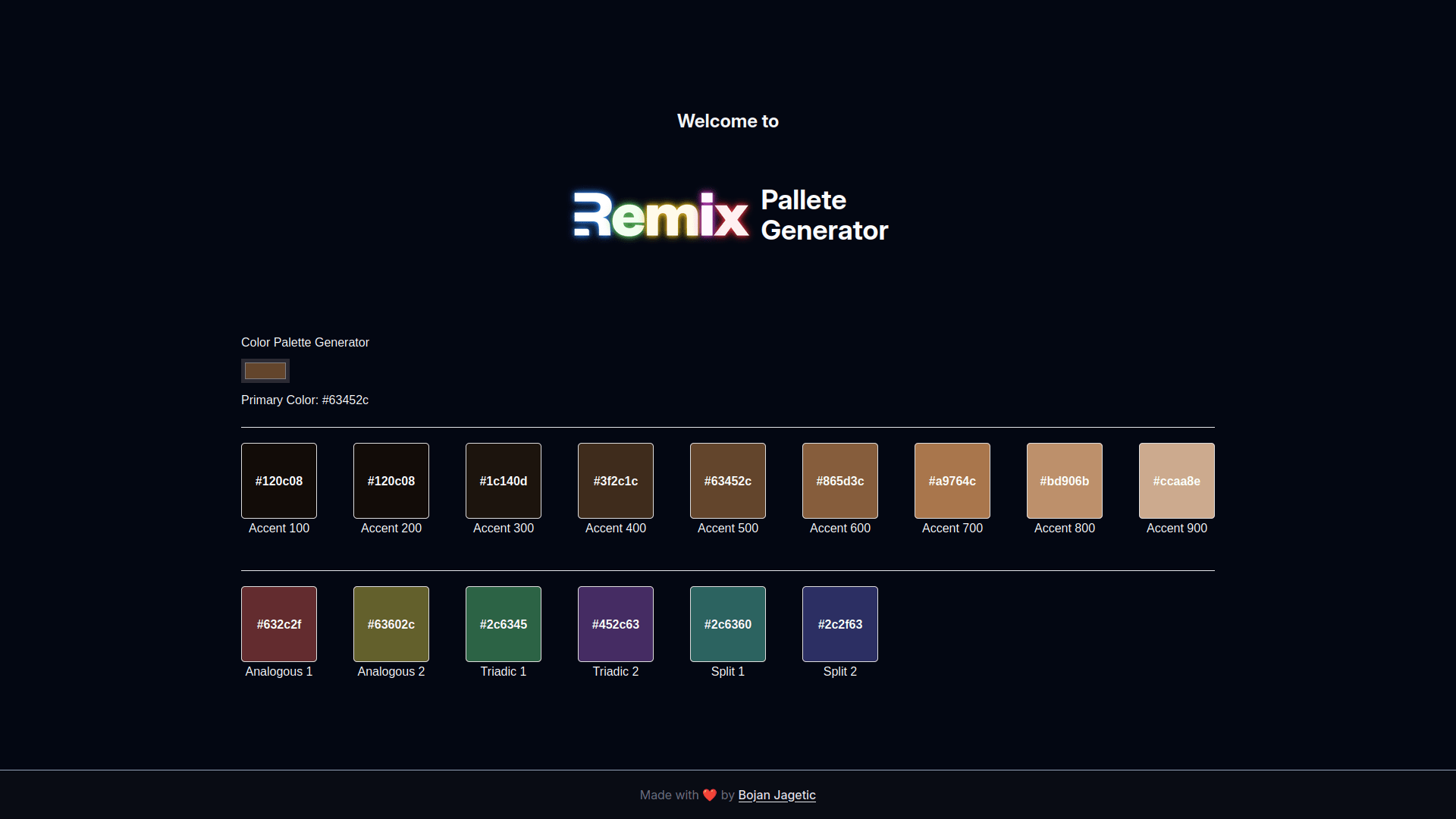
Color Pallete Generator
Conclusion
This color palette generator is a fun way to explore color schemes programmatically. The app demonstrates the power of React for building interactive UIs, and integrating a color manipulation algorithm adds a layer of complexity. I choose Remix to try it , but for simple application like this you can use plain React. With toast notifications, users can get instant feedback when they copy a color to the clipboard.
🍻🍻 Happy coding!